

1. Check devices and account access
Open App settings to check microphone, system audio, and screen recording permissions. Confirm interviewer audio and your microphone, then check the account card or Subscription & Credits for available access.2. Add a resume
Open Resume → Upload Resume. Give it a recognizable title and upload a PDF, DOCX, TXT, or MD file up to 5 MB. Alternatively, switch to manual entry and paste the text. Preview the saved resume and check experience, projects, dates, and figures.3. Add a target role
Open Target Roles → Add Role, enter the role title and requirements, and optionally add the company. Paste the responsibilities and requirements from the job listing, then save. Upload project background or company research to the Knowledge Base if needed.4. Configure and launch
Open Home → Launch Copilot. Choose a resume, role, AI model, optional document, and answer language. Confirm automatic answering and answer preferences, then select Start interview. The assistant contains a transcript area, answer area, and toolbar with AI Answer, Screenshot, Chat, and Audio settings.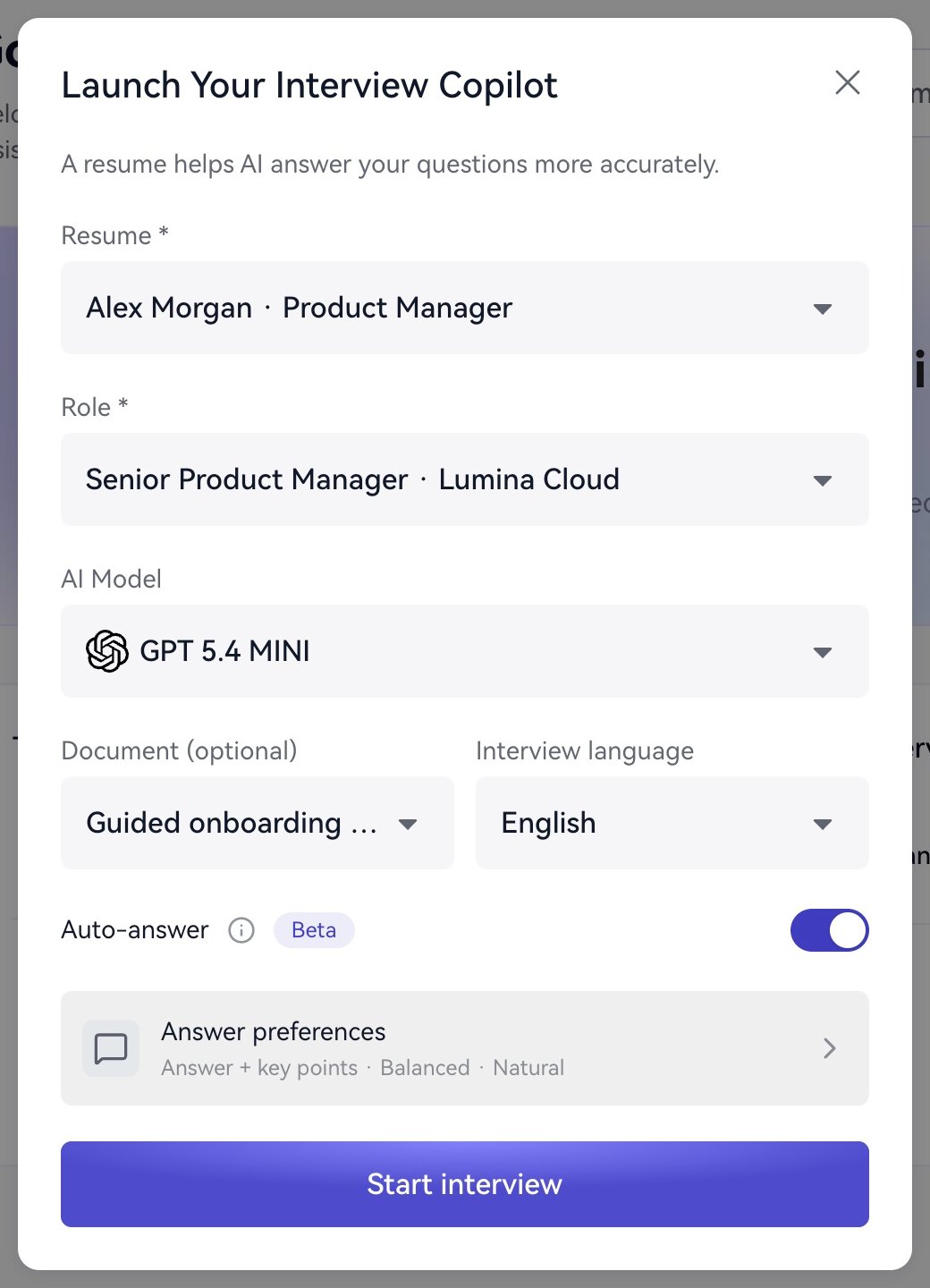
Choose your materials and answer settings before starting.
5. Ask a question
Open Chat, enter “Give me three points for introducing a user activation project in a product manager interview,” and send it. Your question and AI suggestion appear in the answer area. For audio practice, check interviewer audio and your microphone in Audio settings. Automatic answering responds to detected questions; AI Answer lets you trigger a suggestion yourself. Read the suggestion, then answer aloud in your own words to leave material for review.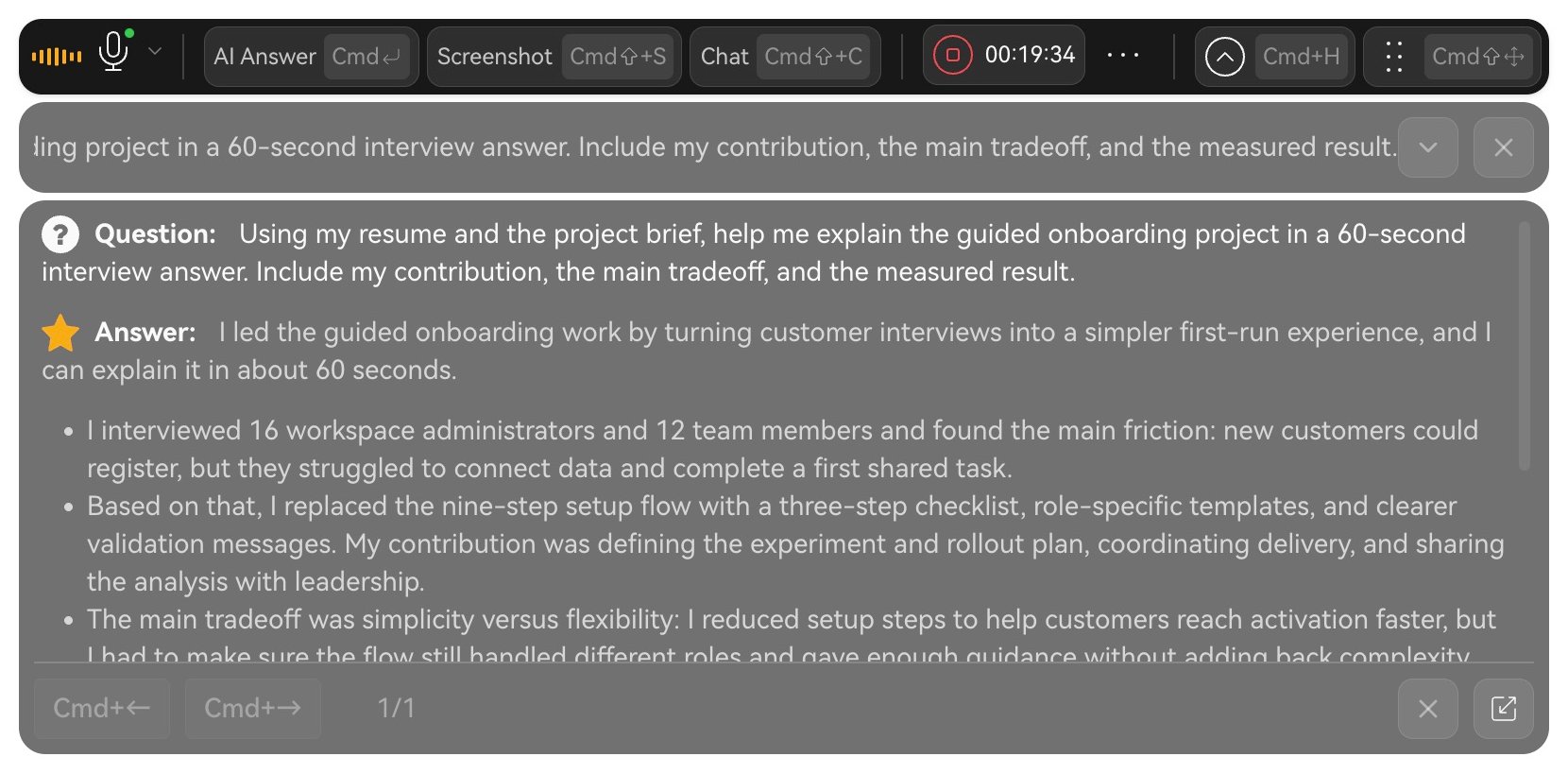
Read the question and AI suggestion in the live assistant.
6. End and review
Select Interview duration → End Interview. After returning to the workspace, open the record and review:- Interview summary: overview, strengths, areas to improve, and suggestions.
- Q&A: questions and AI answers.
- Transcript: conversation text, speakers, and timestamps.